Kaldrik User Guide
Kaldrik helps you plan a recording session before you hit record: song structure, inputs, tracking order, tempo, lyrics, readiness, and credits, plus the session schedule, budget, and crew. Everything is organized into projects that autosave to your account. This is the full guide; a shorter version lives inside the app under ? Guide.
On this page
1.Quick start
- Name your project at the top of the left sidebar (e.g. the band, EP, or session date).
- Add songs with + Add song, or paste a whole setlist at once with Bulk add… (one title per line). Reorder by dragging the ⠿ handle.
- Fill in the Song Map: key, tuning, tempo (BPM), time signature, and the section-by-section structure. Lengths and running times calculate automatically from bars and tempo.
- Build the Input List: every channel, mic/DI, stand, and phantom-power need. By default songs share one project input list (patch the room once, reuse it across songs); a song that needs its own can switch to a custom list. Kaldrik flags songs that need more inputs than your interface offers.
- Set the Tracking Order: the passes you'll record, who plays, whether it's to a click, and the status of each.
- Check Readiness: tick off key, tempo, arrangement, chords, reference, and scratch so you know a song is ready to track. The sidebar shows each song's readiness meter, and the Overview rolls it up across the whole project.
Tip: every field has an ⓘ icon. Hover or focus it for guidance. The bundled example project ("Ashveil Demo Session") is fully filled in so you can explore a worked example, then delete it when you're ready.
New here? Run Take a tour (File menu, under Help) for a guided walkthrough, and follow the Getting started checklist that appears on new projects. It ticks itself off as you complete each real step.
2.The seven tabs
Song
The heart of a song: its metadata, grouped into clear Music, Session, and Creative cards, key, tuning, BPM, time signature, count-in, tempo/feel changes, location, room, date, engineer, reference tracks, and production vision. The Click button next to the tempo plays a metronome driven by the song's BPM and time signature (beat 1 accented; edit the BPM and the click follows). When a session date is set, the + Calendar button next to it downloads an .ics invite you can drop into Google, Apple, or Outlook calendars.
Arrangement
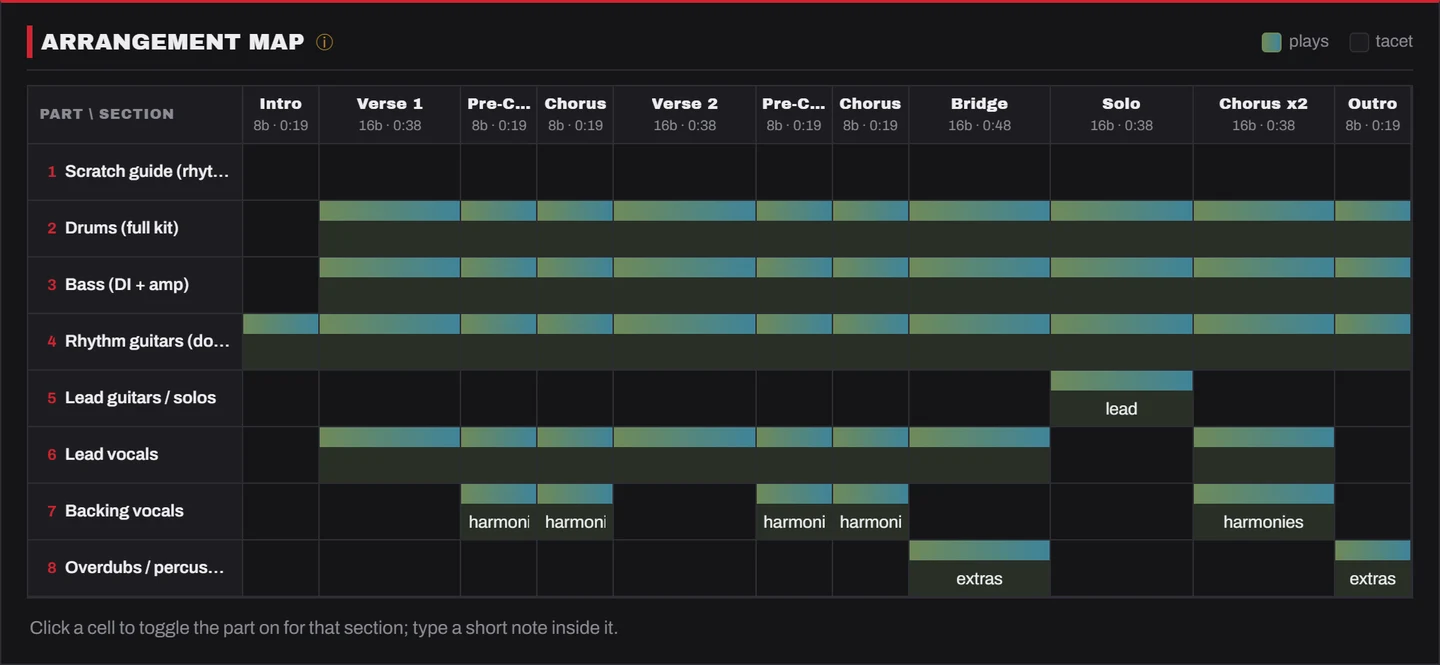
The song's structure, two ways. The Table view lists each section with its bars, optional per-section tempo, chords, feel, arrangement notes, and flags; start bars, section lengths, and cumulative time are computed for you. The Grid (arrangement map) gives one lane per part, columns sized to each section's length: toggle which parts play where, and type a short note inside any cell (an octave, "muted", "solo", and so on). From the Tempo map, export a MIDI (.mid) file (the tempo grid, time signature, and a marker at each section) to import straight into your DAW (Pro Tools, Logic, Reaper, Ableton, Cubase, Studio One) and set up the session before tracking.
Input List
The patch list: channel, source, mic/DI, stand, phantom power, pan, and notes. Because a session is usually patched once and runs many songs through the same I/O, every song shares one project input list by default. Edit it once and it updates for every song using it. Untick Use the project's shared input list on a song that needs a different setup to give it its own custom list. Set your interface's simultaneous input count, and Kaldrik flags any song whose patch list exceeds it. Export the patch list as a Reaper track template (named, record-armed tracks mapped to your patch channels), a plain track sheet (.csv), or a stem-name list (suggested delivery file names). Blank rows are skipped. For everything at once, the Tempo map has a DAW pack (.zip) bundling the tempo MIDI, Reaper track template, region CSV, track sheet, stem names, and a README with import steps.
Tracking Order
The plan for the day: the order passes get recorded, what each pass is, who performs it, whether it's to a click, whether it's a keeper or a scratch guide, status, and a rough time estimate that feeds the session length.
Lyrics
Per-section lyrics that travel with the scratch guide and help with comping. They also appear on the printed sheet and in read-only shares.
Credits
Everything a distributor or publisher needs: songwriters, composer, lyricist, producer, performers, mixing/mastering, primary artist, genre, language, ISRC, and a splits table (each contributor's percentage, which should total 100%).
Notes
A free-form scratchpad for anything else, plus a write-in notes page on the printed sheet.
3.Working with projects
Each set of songs and its session plan is a separate project. Use the projects switcher at the top of the sidebar to see all your projects and switch between them.
- Studio view (all projects), at the top of the switcher, puts every project you're running on one board so you can see which session needs you next (more in "Planning the whole session").
- From the switcher, under Project: + New project, Duplicate this project, New from template…, or Save as template…; under History: Versions… (named restore points) and Recently deleted…; and Delete this project… at the bottom.
- Song templates: the + Add song split button has From template… to start a new song from one you saved, and Save song as template to keep the current song's setup (structure, inputs, tracking passes) for reuse, handy when every song in a genre starts from the same skeleton.
- The toolbar's New and Import JSON also create new projects. They never overwrite the one you're viewing.
- Every project keeps its own songs, session plan, theme, and read-only share link.
- Collaborators (the 🤝 Collaborators button in the project sidebar): invite bandmates or your engineer by email as an editor (can edit) or viewer (read-only). They sign in with that email and accept the invitation (from the 🔔 bell), and the project shows up in their own account. You can change roles or remove people anytime; viewers see a read-only banner. Shared projects show a role badge in your switcher.
- Activity log (the Activity button in the top-right toolbar, on cloud accounts): a per-project history of who added or removed songs, created or revoked share links, posted comments, and invited or removed people, grouped by day.
4.Planning the whole session
Prep
A project-level gear & redundancy checklist (strings, batteries, sample rate, backups, and so on) so nothing is forgotten on the day. There's no standalone button for it: open the Overview and click the Session prep complete gate to work through the checklist.
Schedule, Budget, Crew, Quote & Payments
Five project-level planners in one place (open it from the sidebar, under the project switcher), each on its own tab:
- Schedule / day planner: blocks of time for the session. On the day, Session Mode turns the schedule into a live run sheet with a "now / next" view.
- Budget: a line-item breakdown; combine with the studio rate and billable time for a projected cost, then track estimate vs. actual as real costs come in so you see overruns early. The studio rate is per hour, per day, or a flat fee; billable time auto-fills from the schedule and can be overridden. Add meals / per-diem lines ($ per person × people × days) and taxes: percentage lines applied to the buckets you choose (studio, crew, meals, other), with your country's default tax (VAT, GST, sales tax) pre-filled and editable. Kaldrik is multi-currency: pick your country and amounts format correctly everywhere (USD, EUR, GBP, CAD, MXN, JPY, AUD), and address fields adapt to the country too. Generate one or more invoices (deposit, progress, final) when it's time to bill, each with its own share link and QR code, plus PDF and PNG export.
- Crew / call sheet: who's involved, their roles, and their pay rates (which feed the budget), with a printable per-crew call sheet so each person gets just their own call time and details.
- Quote: a clean, client-facing estimate built from your budget. Add an optional deposit, then Lock & mark sent to freeze the figures; mark it accepted or declined as the client responds, set a validity date after which it shows as expired, and Print / Save PDF or Share quote on the project's link. An accepted quote becomes the billable basis for the invoice, so the invoice shows the same locked figures with no double entry. You can revise back to draft anytime.
- Payments: record deposits and partial payments as they come in (amount, date, method, and a note), and Kaldrik tracks the balance due and flags an overdue balance from a due date. A status chip (Open, Partial, Paid, Overdue) appears in the sidebar once a quote is sent or a payment is logged. These are your own bookkeeping records: Kaldrik does not process payments and never asks for or stores card or bank account numbers.
Overview, Tracking board & Stage plot
Also in the sidebar (and the command palette):
- Overview: your readiness command center. It doesn't just report status, it answers the questions you'd otherwise spend half an hour tracking down: the single next step, the easy wins that compound (quick fixes that clear several songs at once), the hidden risks that bite on session day (I/O that won't fit the interface, a schedule that's too short, a budget overrun, a deadline with songs not ready), and a blockers matrix of every song against every gate. It shows your readiness %, recording progress, and an estimate of how much prep time is left to studio-ready. Two ways to work it down:
- Focus mode: a guided, one-thing-at-a-time runner. It walks the ranked wins (quick ones first) and inlines the editor right there (set the key, lock the tempo, pick a reference across every affected song in a couple of keystrokes), then moves on. Optional and resumable; exit any time.
- Studio view: every project you're running on one board, bucketed into Needs attention, In progress, and Studio-ready, each with its readiness, the soonest session countdown, and the top thing blocking it. The studio owner's answer to "which session needs me, and when?" Open it from the project switcher; click a project to jump in.
- Tracking board (by instrument): passes as rows, songs as columns. Real sessions track by instrument, not by song (a drum day covers every song), so this lets you see and update one pass across the whole project, and "Set all" marks a pass done on every song at once.
- Stage plot: a drag-and-drop stage/input diagram. Build several named plots (a session rarely records the whole band), and link a plot to a song's input list to drop its channels onto the stage, each labelled with its channel number.
Requirements (session rider)
A studio "rider" you hand to the room or engineer: what the studio provides, what the band brings, technical & deliverable specs (sample rate, format, stems), and logistics & hospitality (load-in, parking, hours). Open it from the sidebar. Anything you fill in appears on the shared link and the printout, so everyone arrives on the same page. Empty fields are hidden.
Bulk edit
Set shared fields (band, engineer, location, room, date, key, tuning, BPM) across every song at once. Tick a field, enter a value, and only those fields are applied; untouched songs keep their values.
The sidebar also estimates total runtime, session length, projected finish time (from your start time), and a projected cost from your studio rate (per hour, per day, or flat fee, set in Schedule, Budget & Crew). Click the Studio Rate stat to open that panel and edit it.
Bookings calendar & floor plan
The Bookings button opens a studio-wide, multi-room calendar that spans every project, so you can see the whole studio's diary in one place rather than per session. Define your rooms or spaces (each gets its own color), then add bookings as a Session, a Hold, or Maintenance, with a start and end time and an optional link to a project. Switch between month, week, and day views, and Kaldrik flags double-bookings when two entries overlap in the same room. The Floor plan view lets you sketch a room's layout and drop markers on it (the same drag canvas as the stage plot), with a time slider to see which rooms are busy at a given moment. Rooms and bookings are saved to your account, alongside your studio library.
Reminders
The Reminders button gathers everything time-sensitive for the upcoming session in one hub: an in-app countdown and readiness reminders (what still needs doing before the date), calendar invites (.ics) with configurable alarms for the session and for each crew member, and optional browser notifications you can switch on. There's also a copy-and-send reminder pack: ready-to-paste text you can drop into your own email or group chat. Kaldrik never sends email or SMS on your behalf, so reminders stay entirely under your control with nothing leaving the app unless you send it yourself.
Audio review (mixes & client approvals)
The Audio review button is where you share mixes and masters for feedback. Upload an audio file (up to 100 MB; MP3 or 16/24-bit WAV play most reliably) and stack versions of the same track as it evolves. Each upload gets an interactive waveform player with a volume control; click anywhere on the waveform to leave a time-stamped comment pinned to that exact moment. When you share the project, the client can listen, comment, and approve or request changes right on the shared page, and you're notified in the 🔔 bell. Uploaded audio is stored privately and is served only through short-lived links to the people you share with; it is never made public. Only upload audio you own or have the rights to share.
5.Your libraries: Contacts, Studios, Bands & Gear
Reusable libraries live in the sidebar so you enter people, places, and equipment once and recall them into any project:
- Contacts (the 👥 Contacts button): your address book of crew & collaborators. Each contact has a first and last name, a role (free text, with common studio & production roles suggested as you type), a location and a studio (where they're based vs. where they usually work), contact details, and a saved pay rate (per hour, per day, or other). Add a contact to the Crew tab and their role and rate flow straight into the call sheet and budget; you can also ☆ someone from the Crew tab to save them back as a contact.
- Studios, Venues & Bands: reusable places and acts. Each entry keeps a country-aware address (the fields adapt to the country you pick) and a default rate. In the Budget tab, use From saved studio/venue to pick a saved studio and fill its rate (and rate unit) into the project.
- Gear (the Gear button): your reusable equipment inventory, mics, DIs, preamps, amps, and the rest. Each item has a category, brand and model, quantity, optional serial number, and a status (available, in repair, and so on). Search and filter by category, and import or export the whole inventory as
.json. When you build a song's Input List, you can pull a piece of gear straight from this library so you only type it once.
6.Studio tools
- Tuner: a reference-tone generator, plus an optional microphone mode that listens locally to detect the pitch you play. Your browser asks permission first, and the audio is analyzed on your device only. It's never recorded or sent anywhere.
- Key estimator: check the chords a song uses and Kaldrik estimates the key, lighting them up on a circle of fifths.
- Delay & reverb calculator: note-value delay and pre-delay times from the song's tempo (straight, dotted, triplet).
- Drum tuning & scale references: suggested drum pitches and scale/chord spellings for any key.
- String-gauge reference: common starting gauges per tuning, with the current song's tuning highlighted.
- Transpose & capo: shift a chord progression up or down by semitones (chord suffixes are kept), with a capo table showing the shapes you'd play at each fret and a ★ on positions where every chord is an easy open shape.
More tools live under Resources (the top-level nav): a Toolkit of audio calculators, frequency & wavelength, room modes, phase/comb filtering, dB & gain, file size, and loudness, alongside reference guides and a glossary.
7.Sharing a plan
Use Share to create a public, read-only link to a project. No account needed to view it. The link always shows your latest saved version and is built to be session-ready: each song's structure, arrangement map, input list, tracking order, lyrics, and credits, plus a Session day section with the schedule, a call sheet, and the stage plot. (For privacy, the public call sheet shows only who's needed and when, never personal contact details.) In the Share dialog you can choose which songs and sections appear, so you can share just part of a project. Add a studio address and the shared page shows a map to it (the printout includes a scan-able QR code instead). Viewers can leave comments (you're notified by the 🔔 bell in the toolbar and can reply to or delete any of them), and band members can check in right on the shared page to confirm their availability and mark which songs' parts they've learned, so you can see at a glance who's ready without chasing a group chat. There's also a Download PDF button on the shared page. If you've built a quote or uploaded mixes to Audio review, those can appear on the same link too, so a client can read the estimate and approve a mix without a separate tool. You can set a link to expire on a date or require a passcode, and add release artwork (an album cover, band logo, and studio logo) plus a release type (Single, EP, Album, Demo…) and an accent color, so the shared page and PDF are branded as yours. Each project has its own link, so sharing one project never exposes your others, and you can revoke a link at any time, which disables it immediately. Sharing is off by default.
Want people to actually edit with you rather than just view? Use Collaborators instead (see “Working with projects”); that invites a Kaldrik user to the project itself as an editor or viewer.
8.Saving, backups & exporting
Everything autosaves to your account automatically. Watch the Saved indicator at the bottom-right. Kaldrik does not keep backups for you, so export your own copies regularly:
- Export JSON → This project writes a portable
.jsonfile; Export JSON → All projects writes a single bundle of every project that you can re-import later. - Import JSON brings a file in as a new project (or restores every project from an all-projects bundle). It never overwrites what you're viewing.
- Export XLSX sends the current song, or all songs, to a spreadsheet.
- Print / PDF prints this song, this whole project, or every project, with each part on its own page (structure, arrangement, inputs, tracking, lyrics, credits, notes), plus a project section with the schedule, crew call sheet, budget, and stage plot. Use your browser's "Save as PDF" to keep a PDF copy.
- Session deliverables: purpose-built exports for handing a session off cleanly: an engineer handoff pack (everything the tracking engineer needs in one document), a session report, a splits sheet with signature lines for songwriter / producer percentages, and DAW session scaffolding (a track sheet to set the session up in your DAW from your input list and tracking order).
9.Keyboard shortcuts
| Keys | Action |
|---|---|
| Ctrl/⌘ + K | Command palette: search songs & jump to actions |
| Ctrl/⌘ + S | Export the project to a .json file |
| Ctrl/⌘ + Z | Undo (not while editing a field) |
| Ctrl/⌘ + ⇧ + Z / Ctrl/⌘ + Y | Redo |
| ← / → | Move between tabs (Home / End jump to first / last) |
| Alt + ↑ / ↓ | Reorder the current song / row from any field |
| Enter | Open the focused song in the set list |
| Esc | Close a dialog, menu, or tooltip |
The full, current list is always available in the app under Shortcuts.
10.Account & security
- Sign in with email & password, with Google, or with a magic link: a passwordless sign-in link emailed to you (existing accounts).
- Enable two-factor authentication (2FA) for extra protection (recommended). It's TOTP-based: scan a QR code with any authenticator app (Google Authenticator, Authy, 1Password…) and enter the 6-digit code. Once enabled, 2FA is enforced at the data layer, so a session that hasn't completed the second factor can't read your projects.
- Set a display name and avatar under Account. Collaborators and the activity log show your name and photo instead of a bare email.
- Active sessions: under Account you can see the devices currently signed in (with each session's IP address, browser/device and last activity) and sign out any one of them, or sign out everywhere at once.
- Change your password or delete your account (and all its data) from Account. Export a copy first if you want to keep your work.
11.Themes & accessibility
Pick from fourteen themes (dark and light), including Forge, Midnight, Console, Violet, Ember, Concrete, Slate, Synthwave, Grove, Seafoam, Vapor, Paper, Parchment, and a High-Contrast option for accessibility. The Theme menu also has a font choice: Heavy (the default), Clean, or Rounded, applied across the whole app. The theme is remembered per project by default; if you'd rather have the same look everywhere, turn on Use one theme for all projects in the Theme menu. Prefer fewer animations? Turn on Reduce motion from the Theme menu in the toolbar, and the app respects your device's reduced-motion setting automatically too.